Prepare Complex Documents for AI with Markdown Before You Prompt
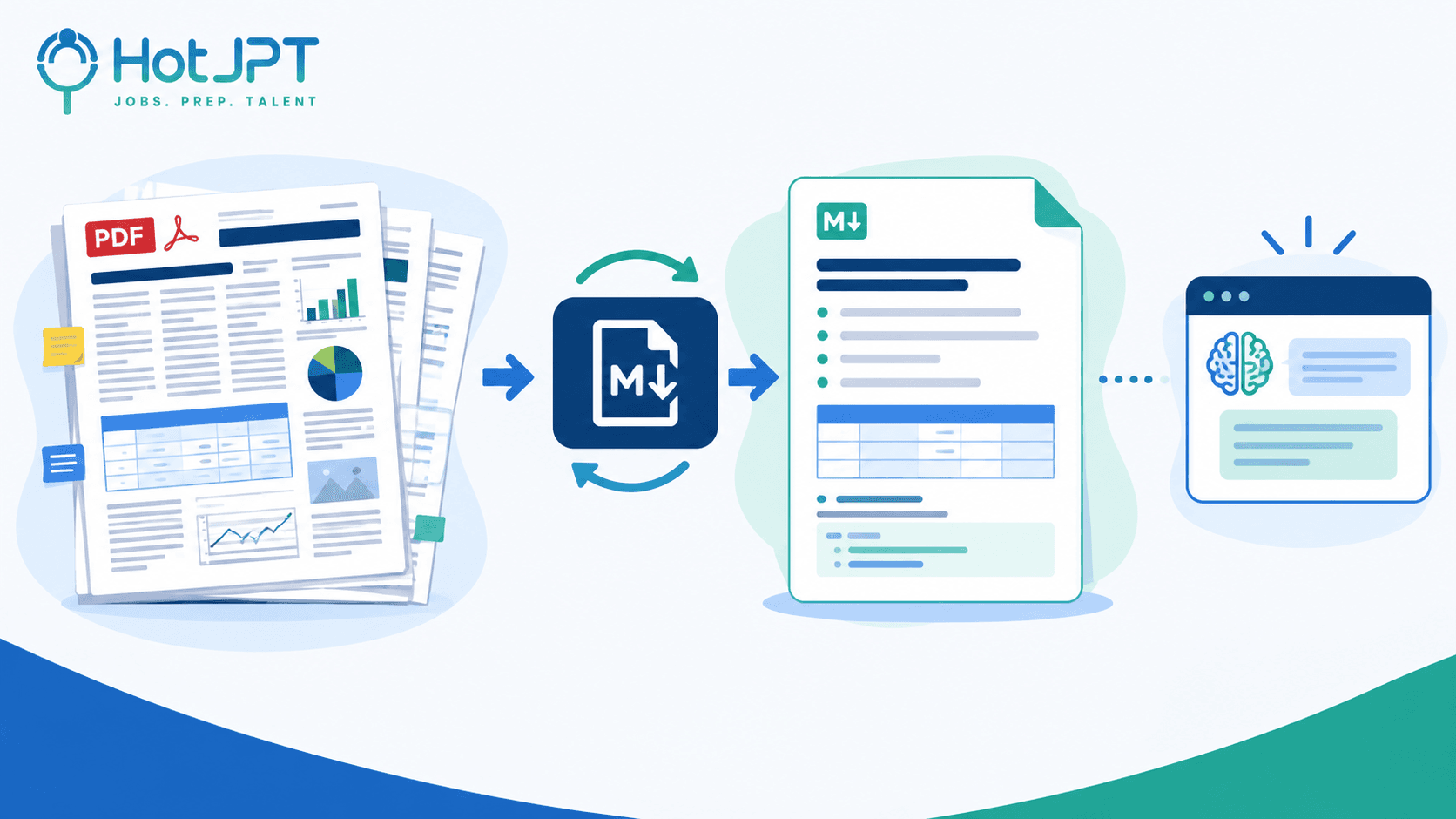
A complicated PDF can look perfectly organized to you while giving an AI model a messy structure to interpret. Columns, tables, footnotes, repeated headers, and scanned pages can all complicate extraction. For important documents, preparing the content first can make the AI workflow easier to inspect and control.
Problem: Complex files can contain structural noise that affects how AI systems interpret their contents.
Approach: Convert complicated files into clean Markdown before analysis, using a tool such as Microsoft's MarkItDown.
Payoff: You can inspect the exact structure before asking AI to reason over the document.
GitHub Repo Link: https://github.com/microsoft/markitdown
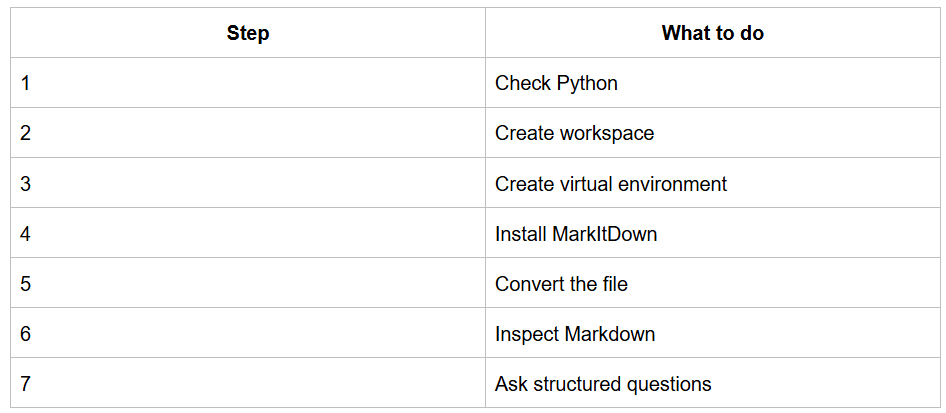
Framework at a Glance
Why Complex PDFs Can Create Noisy AI Input
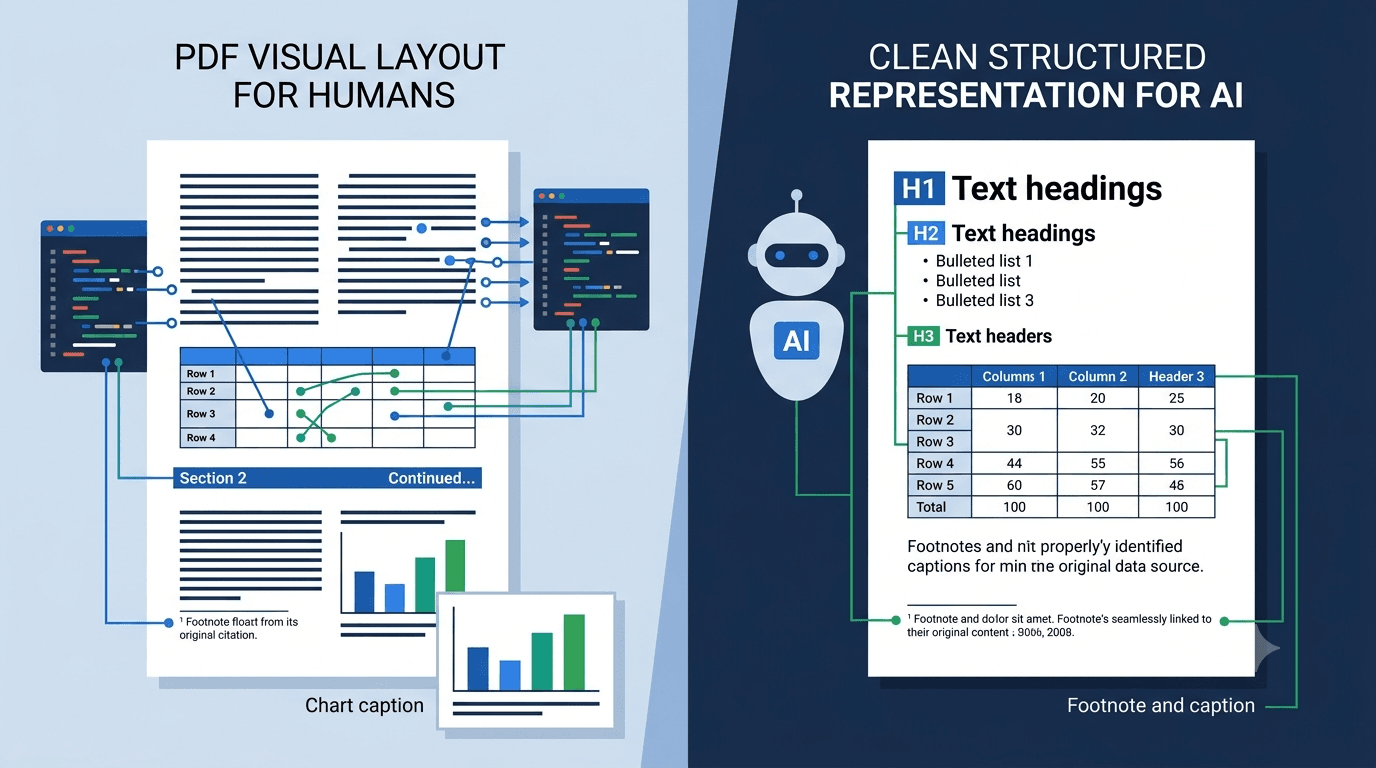
PDFs are excellent for preserving how a document looks. They are not necessarily designed to represent information in a clean, machine-readable structure.
A report might place text into two columns while a table contains rows, footnotes, and captions nearby. A human can visually understand those relationships. An AI processing layer may need to reconstruct them.
Consider a staffing report with a three-column compensation table. If extraction changes the reading order, an AI model could associate a salary figure with the wrong role.
That does not mean every PDF produces bad AI results. It means complicated documents deserve more attention before analysis.
Quick check: If the document contains multiple columns, important tables, charts, footnotes, or unusual formatting, consider preparing it before prompting.
What MarkItDown Does
Microsoft's MarkItDown is an open-source tool designed to convert various file types into Markdown.
Markdown uses lightweight structure. Headings remain headings, lists remain lists, and supported tabular information can become readable tables.
That makes Markdown useful as an intermediate representation between a human-oriented file and an AI workflow.
MarkItDown supports formats including PDFs, Word documents, PowerPoint presentations, Excel files, images, HTML, CSV, JSON, XML, ZIP files, EPUBs, and YouTube URLs, with some formats requiring additional dependencies.
The important distinction is that Markdown does not automatically mean fewer tokens. Any token reduction depends on the original file, its structure, the AI product, and how that product processes uploads.
Use this principle: Convert because the resulting structure is cleaner and easier to inspect, not because a fixed token saving is guaranteed.
The Practical Conversion Workflow
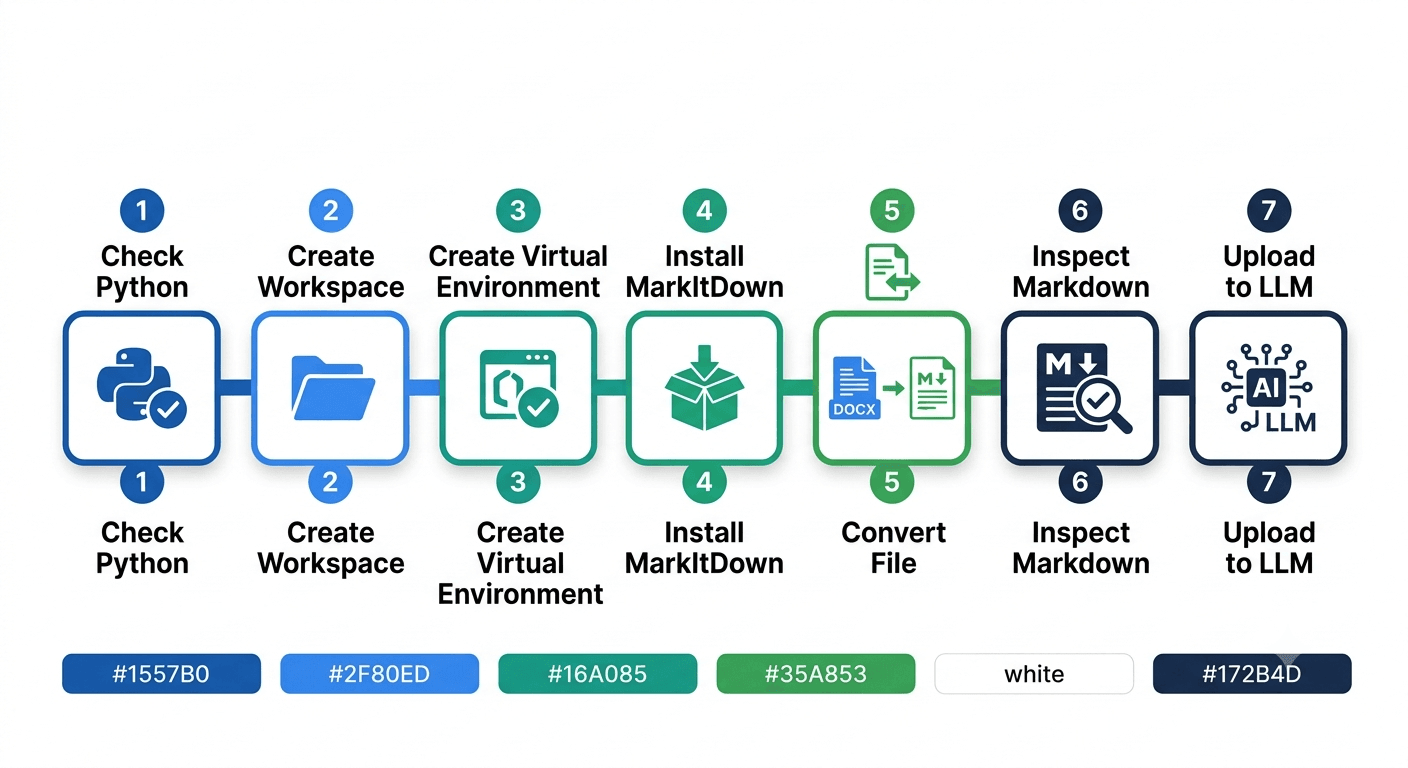
MarkItDown requires Python 3.10 or newer.
On macOS or Linux:
python3 --version
On Windows PowerShell:
py --version
Create a working directory:
mkdir markitdown-work
cd markitdown-work
Then create an isolated Python environment.
macOS/Linux:
python3 -m venv .venv
source .venv/bin/activate
Windows PowerShell:
py -m venv .venv
.\.venv\Scripts\Activate.ps1
Install MarkItDown:
python -m pip install --upgrade pip
python -m pip install 'markitdown[all]'
For a narrower installation, the source material recommends format-specific dependencies such as:
python -m pip install 'markitdown[pdf,docx,pptx]'
Now convert a document:
markitdown "research-report.pdf" -o "research-report.md"
You now have a Markdown version that you can inspect before giving it to an AI model.
Inspect the Markdown Before Using It
This is the step that should not be skipped.
Open the generated .md file and check the headings, names, lists, tables, and other important content. Compare questionable sections with the original document.
For example, suppose a financial report contains a table showing revenue across four quarters. If the Markdown conversion places the numbers under the wrong headings, uploading it to an AI model simply gives the model a cleaner-looking version of incorrect structure.
For critical financial, legal, or numerical information, verify important values against the original.
Then use a prompt that demands traceability:
Read this document and give me:
1. A 10-bullet summary in plain English
2. The three most important claims, with the evidence for each
3. Any contradictions, missing data, or weak assumptions
4. Five practical actions I should take next
For every claim, quote the relevant section heading from the document.
Asking for section headings makes the answer easier to trace back to the source. It does not guarantee that the model interpreted every detail correctly.
When Conversion Is Worth Doing
The extra step becomes more useful when the document is long, layout-heavy, or important enough to justify checking the AI's input.
Research reports: Extract claims, methods, caveats, and supporting information from complicated layouts.
Resumes and job descriptions: Convert both documents before asking AI to identify missing skills, compare requirements, or create tailored outreach.
Slide decks: Extract structured slide content before generating meeting briefs or study materials.
Spreadsheets: Convert supported spreadsheet content before asking AI to identify patterns or anomalies.
Training material: Turn course documents into structured content before creating quizzes, flashcards, or study plans.
A useful rule is simple:
The more expensive a wrong interpretation would be, the more valuable document inspection becomes.
When You Should Skip It
Not every document needs preprocessing.
If you have a one-page PDF containing clean, selectable text and only need a quick opinion, uploading the original may be perfectly reasonable.
For example:
"Is this one-page job description asking for Python experience?"
There may be little benefit in creating a separate Markdown file first.
The workflow is most useful when the document's complexity creates uncertainty. Do not turn a simple task into a technical project just because a conversion tool exists.
Decision rule: If the source is short, clean, and low-risk, try the direct upload. If it is long, complex, or important, consider converting and inspecting first.
Scanned PDFs and OCR
A scanned PDF is different from a normal text PDF.
If you cannot select a sentence with your mouse, the document may essentially be a collection of page images. Standard text extraction can therefore produce little or no useful text.
Microsoft also provides an optional MarkItDown OCR plugin for image-heavy documents. The workflow can use a vision-capable LLM to interpret image content.
That introduces another consideration: OCR may involve an LLM client and model, so model or API costs can apply.
Use this checklist before trusting a scanned document:
Can I select the text?
→ Yes: inspect the normal conversion.
→ No: treat it as a scan.
→ Run OCR if needed.
→ Compare important content with the original.
Never assume that successful conversion means perfect recognition.
Using MarkItDown Through MCP
MarkItDown also has an official MCP server.
MCP allows a compatible AI client to call a local tool rather than requiring you to manually perform every conversion.
The source workflow installs it with:
python -m pip install markitdown-mcp
A compatible client can then be configured to launch the server. One example using uv is:
{
"mcpServers": {
"markitdown": {
"command": "uvx",
"args": ["markitdown-mcp"]
}
}
}
Do not replace your entire existing configuration with this example. Add the MarkItDown entry to the existing mcpServers configuration.
Once configured, you can tell the client:
Use MarkItDown to convert this file to Markdown first.
Then answer my questions only from the converted output.
Tell me if any tables, images, or pages could not be read cleanly.
MCP makes the tool available to a compatible client. It does not mean every attached file will automatically be converted.
Security and Troubleshooting
The MarkItDown MCP workflow is intended for local use with trusted agents. It can access files your user account can access and retrieve URLs provided to it.
Keep the server local. Do not expose it unnecessarily to the public internet, and avoid giving it untrusted files or URLs.
If something fails, check the basics first:
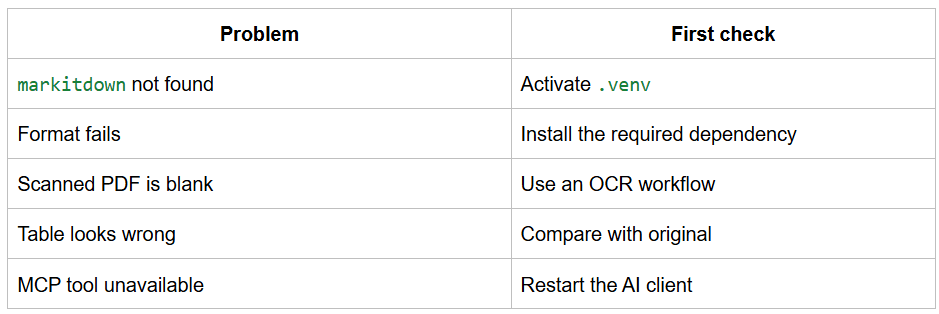
For important tables, visual verification against the source remains the safest approach.
HotJPT Take
The bigger lesson is not about PDFs. It is about input quality as part of AI workflow design.
People spend enormous effort writing better prompts while overlooking the material being given to the model. A sophisticated prompt cannot reliably compensate for badly extracted document structure.
Think of the workflow as:
Source → Structure → Inspection → Prompt → Analysis
MarkItDown is one tool that can help with the structure stage. Other document-processing approaches can work too.
The advantage is control. You get an opportunity to see what the AI is actually being asked to read before asking it to reason over that information.
Save This: PDF → Markdown Decision Checklist
PDF → MARKDOWN DECISION CHECKLIST
□ Is the file long?
Yes → Consider conversion.
□ Is the layout complex?
Multiple columns, footnotes, charts?
Yes → Consider conversion.
□ Are tables important?
Yes → Convert and verify them.
□ Is it scanned/image-only?
Yes → Consider OCR.
□ Is the document important enough to verify?
Yes → Inspect the converted output.
□ Does the Markdown preserve the important structure?
No → Do not trust the conversion yet.
FINAL RULE:
Clean source → direct upload may be enough.
Complex source → convert → inspect → prompt.
Critical information → always verify important values.
The Bottom Line
Better AI results do not start with a better prompt alone; they start with giving the model information in a structure you can actually inspect.
Frequently Asked Questions
Should I convert every PDF to Markdown before using AI?
No. Simple, clean, low-risk PDFs may not need preprocessing. The benefit increases when documents are long, structurally complicated, or important.
Does Markdown always use fewer tokens than a PDF?
No. There is no universal token-saving guarantee. The result depends on the document and how the AI product processes uploaded files.
Can MarkItDown perfectly convert scanned PDFs?
No. Scanned documents may require OCR, and the extracted result should be checked against the original.
Does MCP automatically convert every file I upload?
No. MCP makes the MarkItDown tool available to a compatible AI client. You still need to instruct the client to use the conversion workflow.
The HotJPT editorial team covers AI, US immigration, IT job market trends, and staffing intelligence for recruiters, bench sales marketers, and IT consultants.